
October’s updates focus on everyday tasks: helping a new family book their first session, keeping parents informed, sharing context between coaches, and managing the spaces where you train.
Here’s a look at the highlights:
- Guest booking for free sessions
- Booking confirmations when staff reserve a lesson
- Private notes on client profiles
- Resource changes and shared spaces for group sessions
- Improvements to sign-in, payments, and website images
Let new families book a free session without an account
A free evaluation or introductory session gives families a chance to get to know your business. They can now reserve that first visit without creating a CoachIQ account.
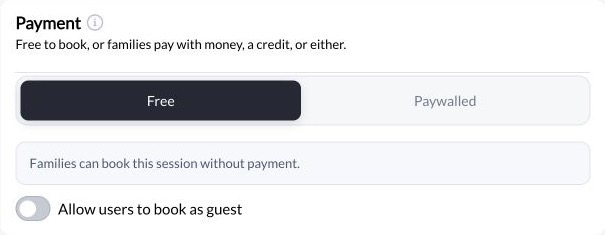
Free schedulers have an Allow users to book as guest setting. Turn it on, and a new visitor can book through your app or website with their name and email.
You could use this for a complimentary hitting evaluation, an introductory call, or a free trial session. Families whose email already belongs to an account will be asked to sign in.
To get started, open your free scheduler’s Payment section and enable guest booking. This setting applies to free schedulers; paid sessions use the payment product’s guest-checkout settings, and credit bookings still require sign-in.
Send a confirmation when you book for a client
A parent calls to reserve next Tuesday’s lesson. You add their athlete to the calendar, and now you can send the family a confirmation as part of that booking.
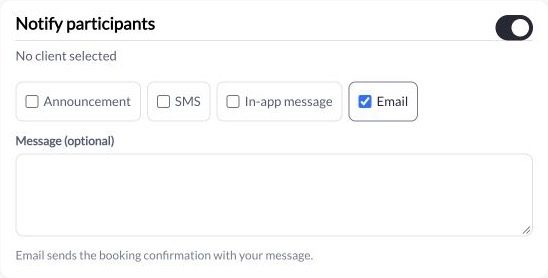
In Scheduling → Calendar → Book Session, turn on Notify participants. The athlete and their linked parents receive the session confirmation email and app notification. Parents also receive it when their child has no email address.
You can add a personal message, including a working payment link, and choose additional messaging channels when needed.
Notifications are off by default, so you decide when to send them. Booking confirmations are also separate from the reminders families receive before a session.
Learn how to send a booking confirmation →
Keep client context in private staff notes
When several coaches work with the same athlete, it helps to have a shared place for the details they need.
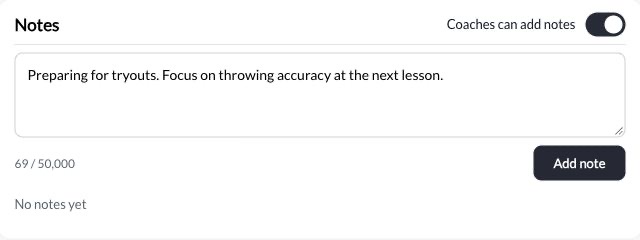
The new Notes tab on client profiles lets staff record goals, session takeaways, and family preferences. For example, a coach could note that an athlete is preparing for tryouts and wants to focus on throwing accuracy at their next lesson.
Each note shows who wrote it and when. Notes stay private to staff; athletes and parents cannot see them.
Admins control whether coaches can add notes. Coaches can delete their own notes while that permission is enabled, and admins can delete any note. Notes cannot currently be edited, so corrections require deleting and adding the note again.
Find them under People → Clients → open a client → Notes.
Adjust resources and keep groups together
Training spaces need to accommodate both individual lessons and groups. October’s resource updates give staff more control over those assignments.
For lessons configured to assign one resource per booking from a pool, staff can open the athlete’s menu on the web calendar and choose Change Resource. Unavailable spaces are greyed out and show who has them.
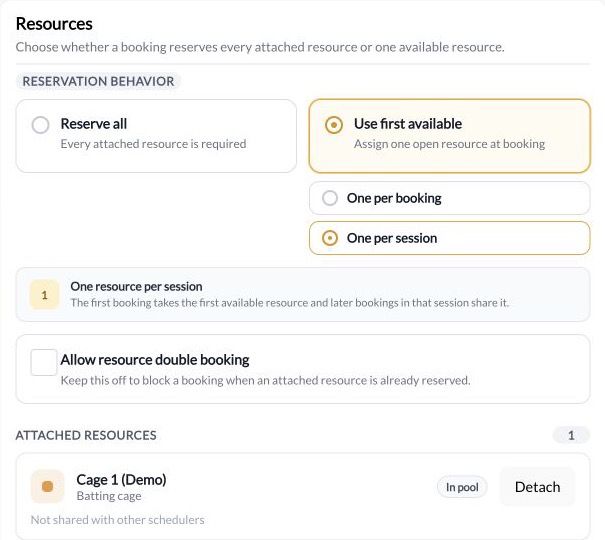
Group sessions also have a new One per session option under Use first available. Everyone in the same session shares one resource.
For example, three athletes attending a semi-private session can share one field, leaving other fields available for rentals when the remaining scheduling rules allow it. Rentals and individual bookings that each need their own space can keep One per booking.
These controls are available on the web calendar.
Set up resources for lessons and groups →
Other improvements this month
- Sign in with a texted code. Athletes and parents can use a six-digit code sent to the phone number on their account. Coaches and admins continue using email and password.
- See paused membership payments. Memberships paused in Stripe now show their payment status and resume date in CoachIQ. Members retain access, bookings, and credits.
- Record cash and check amounts. When adding a product to a client and marking it paid by Cash, Check, or Other, staff can enter the amount collected.
- Control website image cropping. A new Focus setting lets you choose which part of an image or video stays visible in cards and galleries.
- Understand checkout totals. Checkout more clearly distinguishes the amount due today from the product’s list price.
See the full October release details →
Try these updates in CoachIQ
Start with the update that fits your next task: enable guest booking for an upcoming free evaluation, send a confirmation with your next staff booking, or add a note before another coach’s lesson.
The linked Help Center guides walk through each setup.
