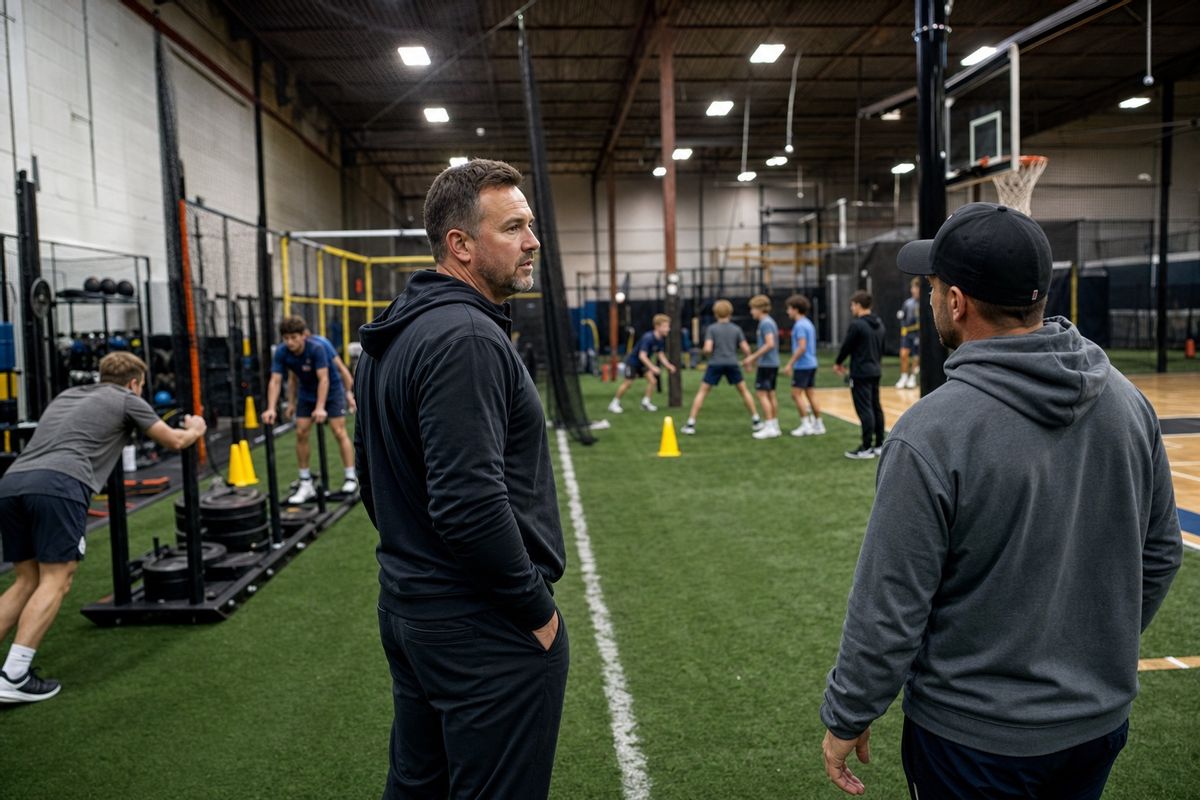
Sports training facility owner overseeing coaches and athletes across an indoor multi-use training floor
Guide

A Parent Welcome Workflow for Sports Training Facilities

Create a parent welcome message for your sports training facility. Use a copyable template, booking and Credits checklist, and an AI drafting prompt.

By CoachIQ October 26, 2026

Last updated: October 26, 2026

A parent welcome workflow should tell a family what to do after joining your facility: choose the right Session, understand its package, prepare for the first visit, and know where to ask for help. Start with one clear message and a staff checklist. Use AI to draft from facts you have approved, then have a staff member check and send the message.

A package purchase and a booked Session are different events. A parent who has bought training may still need to choose an athlete, select an eligible time, and complete registration. Your welcome message should make that next step explicit.

Decide when the welcome message belongs

Choose when staff should send the welcome: after a first package purchase, a first booking, or an approved registration. Pick one starting point for the first version.

Then define who should receive it. The athlete attending, the person paying, and the parent handling communication may be different people. Confirm the intended parent contact before sending.

Use this worksheet to make the staff handoff clear:

Decision What to agree on
When to send The purchase, booking, or registration that calls for a welcome.
Who receives it The intended parent or guardian and the athlete the message concerns.
What to include The next action, relevant package rules, arrival details, and help contact.
Who sends it The staff member responsible and a backup when they are away.
What to record When it was sent, through which channel, and who handles replies.

Check whether the family has already received the welcome. A returning family may need a short update instead of the full first-visit message.

What should parents know before the first Session?

Build the message around the next action. Keep detailed policies on a maintained page and link to them.

  • Booking: Where to book, which athlete to select, and which training offer to choose. If booking is still required, say so.
  • Credits: What the purchased package can be used for and where the family can check its balance and expiration terms.
  • Changes: Where to cancel or reschedule, the applicable deadline, and where to read what happens to Credits or payments.
  • Arrival: The correct facility location, check-in instructions, and anything the athlete should bring.
  • Registration: Any information or forms the family must complete before attending.
  • Help: A contact the family can actually reach, with someone assigned to monitor replies.

Use the Credits and cancellation checklist to check your policy wording. Use the scheduling guide to check the booking rules behind the link. Do not promise a Credit return, refund, or open training spot unless your actual setup supports it.

Copy this parent welcome message

Replace every bracketed field with approved information. Remove any sentence that does not apply. These brackets are editing prompts, not automatic personalization fields.

Subject: Welcome to [facility] — your next step for [athlete]

Hi [parent name],

Welcome to [facility]. We're glad [athlete] is joining us for [training offer].

Your next step: [Book an eligible Session at the verified booking link / review the Session you have already booked]. Select [the correct athlete and offer, if relevant].

Your package: [Plain-language inclusions, eligible Sessions, and where to check the balance and expiration terms].

Before the first visit: [Complete the required information or forms]. Come to [location and check-in instructions] and bring [equipment or clothing].

Need to change a booking? Use [verified cancellation or rescheduling instructions]. Our deadline is [approved deadline and time zone, where relevant]. Read [policy link] for how changes affect Credits and payments.

Questions? Contact [monitored contact or channel]. [Named team or role] will help you with booking or getting ready.

See you at training,

[Coach or facility team]

If the parent has not booked yet, avoid wording such as “Your spot is confirmed.” If the message follows a booking, remove the instruction to make another one. Preview every link on a phone before using the template.

Use AI to draft from your approved facts

You can prepare the copy without a live connection to your business. Give the assistant the offer details and policy wording it needs; use fictional names while developing the template.

Copy this prompt:

Draft a parent welcome message for a coach-led sports training facility using only the facts below.

Starting event: [event] Parent's next action: [action] Offer and eligibility: [approved facts] Booking destination: [verified link] Credits and expiration: [approved wording] Cancellation and payment policy: [approved wording and link] Location, arrival, and equipment: [facts] Required registration steps: [facts] Reply contact: [monitored channel]

Keep the message clear and friendly. Do not invent availability, deadlines, refund promises, package benefits, or a confirmed booking. List missing facts separately. Return a proposed message and a review checklist. Do not select recipients, send anything, or change a live workflow.

Review the result against the source information. A polished sentence can still contain the wrong deadline or imply that buying a package reserves a time.

Check the message before sending

Have a staff member review the completed message against the family's actual purchase or booking.

  • Confirm the parent contact and the athlete's name.
  • Check whether the next step is to book a Session or review an existing booking.
  • Match package details and cancellation wording to the current policy.
  • Open the booking, registration, and policy links on a phone.
  • Confirm the location, arrival instructions, and equipment list.
  • Remove every unused template field and any sentence that does not apply.
  • Confirm who will receive and answer replies.

Send through your facility's approved communication channel. Record that the welcome was sent so another staff member can check before sending it again. If delivery is uncertain, inspect the result before retrying.

Hypothetical example: A parent buys a package for one athlete but has not chosen a Session. Staff use the booking version of the template and explain where to select an eligible time. When the family later buys another package, staff check the earlier message and send only the information that has changed. This is an illustrative staff process, not a customer result or a tested software automation.

Keep the welcome useful after the first send

Ask the staff member handling replies to note which instructions parents still find confusing. If families repeatedly ask where to park, revise the arrival line. If they confuse a package purchase with a reserved Session, make the booking step more explicit.

Keep one current master template and assign someone to update it when your offers, location details, or policies change. Check the linked pages at the same time so the message and the instructions agree.

Frequently asked questions

What should a sports facility parent welcome message include?

Include the next booking step, relevant package rules, cancellation instructions, first-visit details, required registration tasks, and a monitored contact. Make clear whether a Session is already booked or the family still needs to choose one.

Can I use AI to write the message without connecting CoachIQ?

Yes. You can draft from facts you supply. Check the result against your current offer and policies. That writing exercise does not inspect your live account, configure an automation, or send the message.

Should every package purchase send the same welcome?

Choose the rule for your facility. A first-time family may need arrival and registration instructions; a returning family may need a different next step. Check the family's situation before choosing which version to send.

Give the family one clear next step

Start with an accurate message, a verified booking destination, and a named person responsible for replies. The family should finish reading with one clear next step.

For the broader framework, read AI for sports training facilities. To discuss your facility's booking and communication workflow, book a free demo.

POWERED BY

CoachIQ Logo