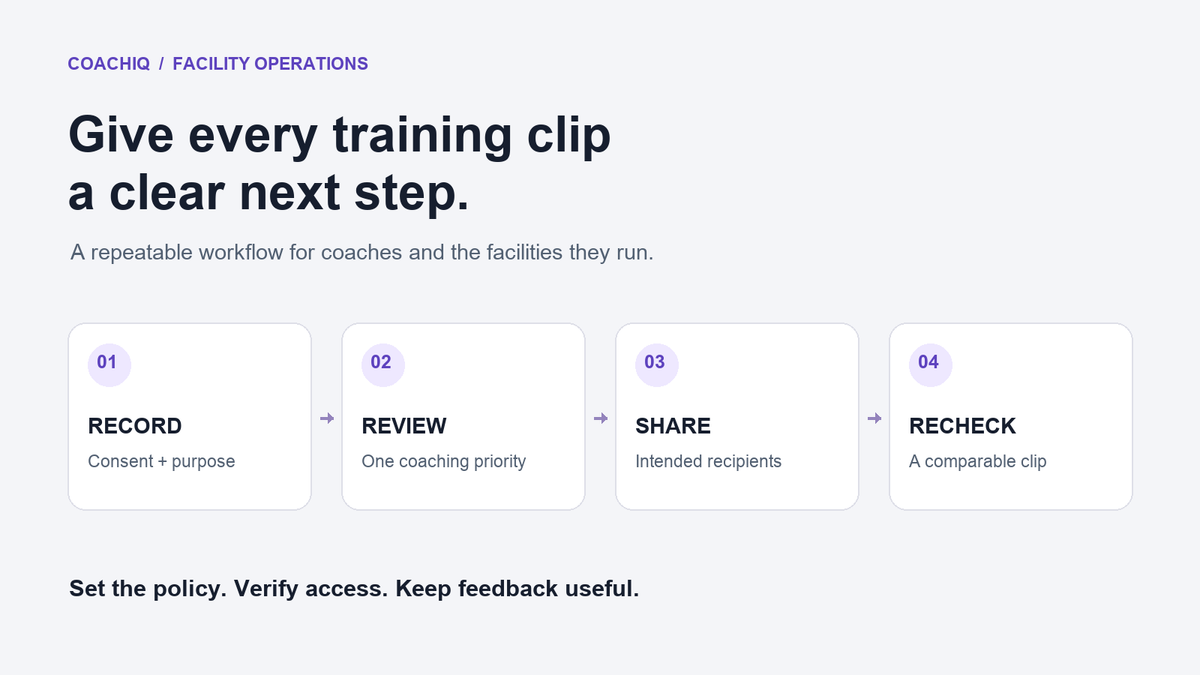
Four steps for training video feedback: record with consent, review one priority, share with intended recipients, and recheck progress
Guide

Securely Sharing Training Videos and Progress with Athletes

Learn how to securely share training videos, centralize coach-athlete messages, protect youth footage, and track progress in one connected athlete record.

By CoachIQ September 4, 2026

Last updated: September 4, 2026

Quick answer: To securely share training videos, use a private, account-based athlete platform with limited access, a clear consent policy, and a way to remove access later. Keep the clip, coaching feedback, athlete record, and next training step together. Avoid public posts and open “anyone with the link” folders for individual athlete feedback.

A 20-second training clip can make a correction obvious. It can also reach the wrong group chat, stay in a coach’s camera roll, or lose its context as “IMG_4821.”

When several coaches work under your facility’s name, the video workflow needs to hold up across staff changes. Coaches and the facilities they run need a repeatable way to collect consent, limit access, deliver feedback, preserve staff boundaries, and show progress. The right workflow works for one-to-one coaching and small groups without forcing every athlete into a team-wide chat.

What should a secure video-sharing workflow include?

Share training videos through individual accounts with role-based access, named recipients, and a documented retention policy. The goal is to give the athlete, their parent or guardian when appropriate, and authorized staff access without making the footage public or easy to forward by accident.

Use this checklist to evaluate your platform and write your facility’s policy:

  • Get written permission for recording, private review, and any separate marketing use.
  • Store footage in a business-owned system, not only on personal phones.
  • Give access to named people instead of publishing an open link.
  • Limit staff access to the athletes they work with.
  • Use a parent, guardian, or another authorized adult in communications when required.
  • Set a schedule for reviewing and deleting footage you no longer need.
  • Review and remove access when an athlete leaves or a coach changes roles, and confirm what happens to previously shared files.

No software replaces the rules that apply to your sport, governing body, location, or business. Treat this as an operating baseline, and get qualified legal review where needed.

Why should coaches avoid public video links?

Public or unrestricted links are a poor default because the business cannot reliably control who opens, forwards, downloads, or keeps the footage. A link can move from one parent to an entire team in seconds.

Youth footage may show an athlete’s face, voice, uniform, school, or location. The Federal Trade Commission explains that photos, videos, and audio containing a child’s image or voice can count as personal information under the Children’s Online Privacy Protection Rule when it applies. Its six-step COPPA compliance plan also covers protecting children’s information.

COPPA focuses on covered websites and online services collecting personal information from children under 13. Recording a youth Session does not by itself establish that a coaching business is covered. Still, “it is only a video” is a poor privacy assumption. Know what you collect, why you keep it, who can access it, and how a family can request removal.

Do not mix private review with social media consent. Permission to send an annotated clip is not permission to post it publicly. Record each choice separately.

Step 1: Write a video and communication policy

A useful policy states who can record athletes, where footage is stored, who may receive it, how long it is kept, and what happens when consent changes. Keep the policy short enough that coaches and families will read it.

Cover these questions:

  1. What training activities may be recorded?
  2. Is the footage used for private feedback, internal coach education, marketing, or more than one purpose?
  3. Who owns the business account and controls access?
  4. Which staff roles can view, comment on, download, or delete footage?
  5. How are parents and guardians included for minor athletes?
  6. How can a family decline recording or withdraw permission?
  7. When does the facility archive or delete old files?

For programs in the U.S. Olympic and Paralympic Movement, the U.S. Center for SafeSport requires covered electronic communication between Adult Participants and Minor Athletes to be open and transparent unless an exception applies. Its guide to communicating safely with minor athletes explains which adults to include. Even when those rules do not govern your business, use business-owned channels and make youth communication visible to the appropriate adults. A separate copy sent to a parent is not the same as including that parent in the athlete’s conversation; check that the channel supports the communication process your policy requires.

Step 2: Choose the right tool for the sharing job

The best tool for sharing training footage depends on whether you need private feedback, team distribution, file transfer, or progress records. One tool will not handle every use well.

Tool category Best use What to verify
Athlete management and coaching platform Private feedback tied to athlete profiles, Programs, and communication Named accounts, staff permissions, delivery options, access removal, and retention controls
Managed cloud storage Internal storage or controlled transfer of raw files Link settings, download controls, folder ownership, audit history, and expiration options
Standalone video analysis tool Frame-by-frame markup and technical review Where files are stored, how athletes log in, and whether feedback stays tied to a long-term athlete record
Team messaging app Roster announcements, event changes, and team-wide clips Guardian access, subgroup permissions, moderation, and record ownership
Personal text or social direct message Emergency fallback only Poor business ownership, scattered history, unclear boundaries, and limited access control

For one-to-one or small-group coaching, favor a private athlete record over a roster-wide feed. A facility may train 150 athletes without operating as one team. Each athlete needs their own history, feedback, Programs, and next step.

CoachIQ’s virtual coaching tools connect Media, Programs, video feedback, and athlete delivery. Coaches can organize files in the Media Hub, create an annotated Video Analysis, and deliver it through a private Program assigned to the intended athlete or through an in-app message. Before using any platform for sensitive footage, test recipient access, staff visibility, and what happens when access is removed. Those are requirements to verify, not capabilities to assume from the word “private.”

Step 3: Name and store footage so it remains useful

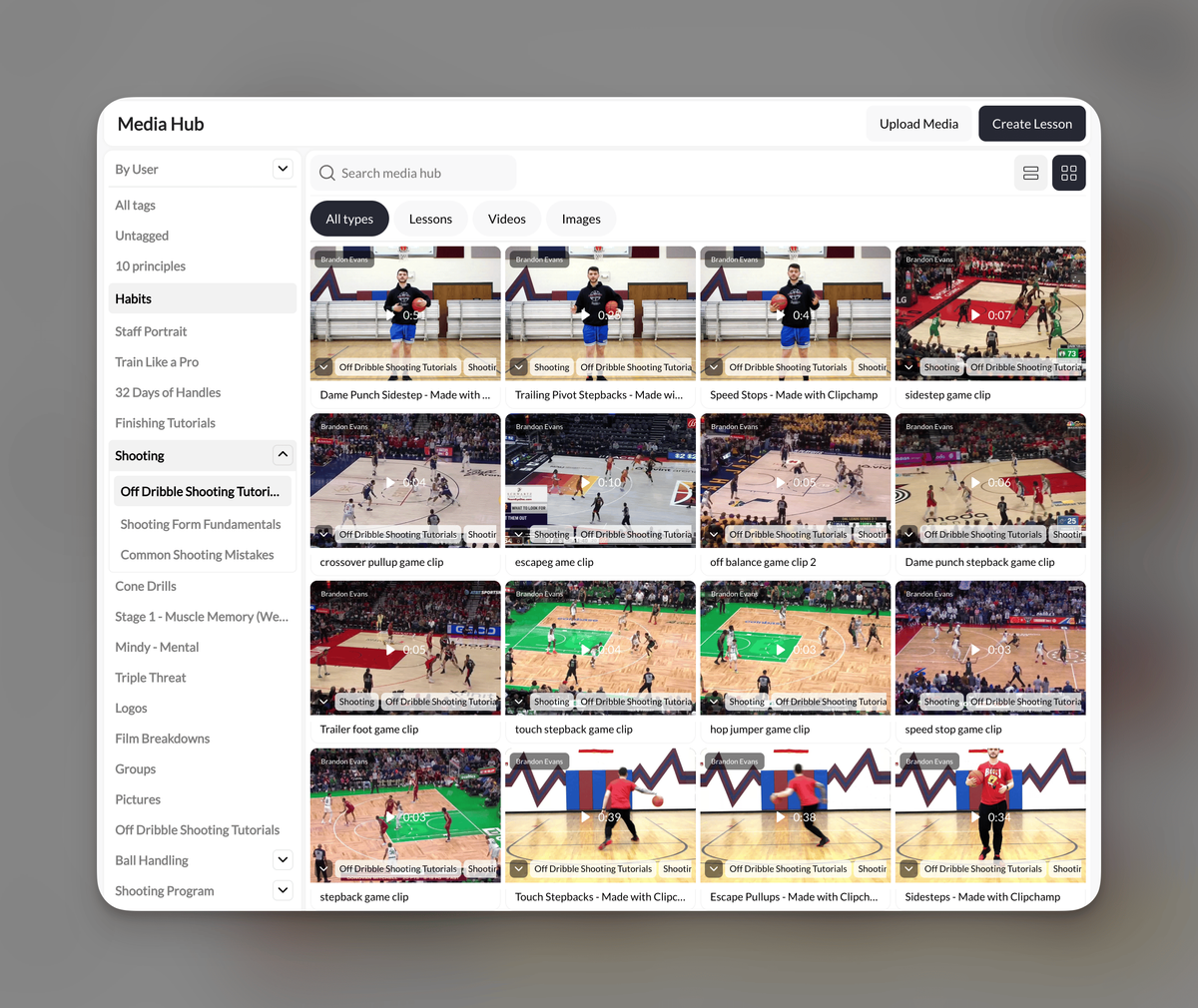
CoachIQ Media Hub with tagged basketball training videos organized in a searchable library
Use tags to organize footage by training focus before adding it to lessons or Programs.

Use a consistent file and record structure so every clip has an athlete, date, training focus, and access owner. Secure storage is not enough if the footage becomes a digital junk drawer.

A simple naming pattern is:

[athlete-id]_[yyyy-mm-dd]_[movement-or-skill]_[angle]

Use an internal athlete identifier when filenames might be visible outside the primary system. Keep the full name and coaching context inside the protected record.

Separate three layers:

  • Original footage: The raw clip retained only when the coaching process needs it.
  • Coaching analysis: The shortened or annotated version that explains one or two priorities.
  • Progress evidence: Comparable clips selected for a baseline and later review.

Do not save every repetition forever. Keep evidence that supports the athlete’s plan, delete duplicates, and review old footage on schedule. A smaller, labeled library is easier to protect and use.

Step 4: Deliver coaching feedback with the clip

Every shared training video should include the observation, the next action, and when the coach will review the skill again. A raw clip makes the athlete guess what matters.

Use a three-part note:

Notice: Your front foot lands across your body on the final two reps.

Try: Keep the toe on the target line during the next set.

Recheck: Record the same angle after Thursday’s Session.

Keep the analysis narrow. Two clear corrections beat a long breakdown the athlete never watches. When visual detail matters, annotate the frame and add voice feedback.

In CoachIQ, Video Analysis supports voice commentary, drawings, and visual markup. Send the finished analysis through a Program or private in-app messaging so the footage and conversation stay in a business-owned workflow.

Check delivery before making it routine: recipients need app or Athlete Portal access. CoachIQ’s in-app messaging guide also states that sent messages cannot be deleted and that sending to several recipients creates separate individual conversations. Do not treat that recipient list as a shared coach-athlete-guardian thread. Choose a channel that includes the required adult in the same exchange when your policy requires it.

Step 5: Centralize coach-to-athlete communication

Centralize routine messages in a shared business Inbox so feedback, questions, and follow-ups do not scatter across texts, email, and social direct messages. The facility should keep the relationship history when staff assignments change.

Give each channel one job:

  • Use in-app messages for feedback and individual questions.
  • Use business SMS for urgent changes.
  • Use announcements for closures, deadlines, and updates to a defined group.
  • Use Automations for predictable reminders after a Booking, purchase, cancellation, or form submission.

CoachIQ’s coach-athlete communication tools bring in-app messages, two-way SMS, and announcements into one Inbox. Messages can connect to the same athlete profiles, Sessions, Programs, Credits, and forms used by the facility.

If communication is the main problem you are solving, the full guide to choosing a coach-athlete communication app explains channel rules, guardian involvement, staff ownership, and a seven-day rollout.

How should I message an entire sports team or training group?

Use a one-to-many announcement for information everyone needs, and move private questions or athlete feedback into separate threads. A broadcast is right for a weather closure. It is wrong for discussing one athlete’s progress.

Choose recipients by camp, location, age band, Program, or athlete tag. Include one action and a deadline: “Tonight’s 6:00pm speed group has moved indoors. Enter through Door B and bring court shoes.”

Roster messaging works when the team is the unit. A private coach or facility has a different structure: one athlete may train privately, attend two groups, and work with several coaches. Broadcast shared updates, but keep individual feedback attached to the athlete.

CoachIQ Announcements distribute updates to selected recipients, while tags help define the audience. Announcement email replies go to the configured reply-to address, outside the CoachIQ Inbox. Use in-app messages or SMS when replies should stay in the Inbox.

Step 6: Turn video into an athlete progress record

Track progress by comparing footage captured under the same conditions and pairing it with repeatable benchmarks and short coaching notes. A highlight reel shows moments. A progress record shows change.

Choose a baseline clip with a defined angle, drill, setup, and date. Add three to five measures tied to the athlete’s goal. Re-record at the end of each training block.

A review contains:

  • The goal and baseline date.
  • One or two comparable video clips.
  • The same benchmark measured the same way.
  • A short explanation of what changed.
  • The focus and re-test date for the next block.

CoachIQ athlete profiles can keep contact details, Booking history, Credits, tags, custom fields, and notes together. Programs and video feedback add the training layer. For a complete scorecard and review cadence, use the guide to tracking athlete progress.

Frequently asked questions

Secure video sharing works when access, communication, and athlete development follow one written process. These answers cover the questions coaches ask most often.

How can I securely share training videos?

Use a platform whose account access, recipient settings, and removal process you have checked. Collect the right consent, include parents or guardians when required, and avoid public or unrestricted links for individual athlete footage. Removing platform access cannot recall copies someone has already downloaded or recorded.

What are the top tools for sharing training footage?

The main choices are athlete management platforms, controlled cloud storage, standalone analysis tools, and team messaging apps. For private coaching or a coach-led facility, choose a platform that connects video feedback to the athlete record, communication, Programs, and progress history.

What is the best app for coach-athlete communication?

CoachIQ is a strong fit for coaches and training facilities that need messages connected to Sessions, athlete profiles, Programs, Credits, and payments. A roster-based team app is better when the main job is coordinating one team’s schedule and announcements.

Can I send one video to a small training group?

Yes, if every recipient is authorized to view the footage and the delivery method fits your communication policy. A coach’s drill demonstration may suit a group. Footage evaluating one athlete belongs with that athlete and any required parent, guardian, or other authorized adult.

Should coaches keep athlete videos on personal phones?

Personal phones may capture footage, but they should not be the permanent system of record. Move approved clips into a business-owned platform promptly, follow the retention policy, and remove local copies when they are no longer needed.

Keep the footage private and the progress visible

To securely share training videos while making progress visible, control access and keep the coaching record together. Start with consent, business-owned storage, named access, clear channel rules, and a small progress routine your coaches will follow.

CoachIQ brings Video Analysis, the Media Hub, Programs, athlete profiles, the Inbox, and the Athlete Portal into the same coach-athlete workflow. It works for one-to-one coaches, growing facilities, and multi-location academies without turning private development into a team-wide feed. Book a free demo to see how training footage and athlete progress can stay connected.

POWERED BY

CoachIQ Logo